
Welcome to the Customer Portal
What the portal is for, what you can do in it, and where to start.
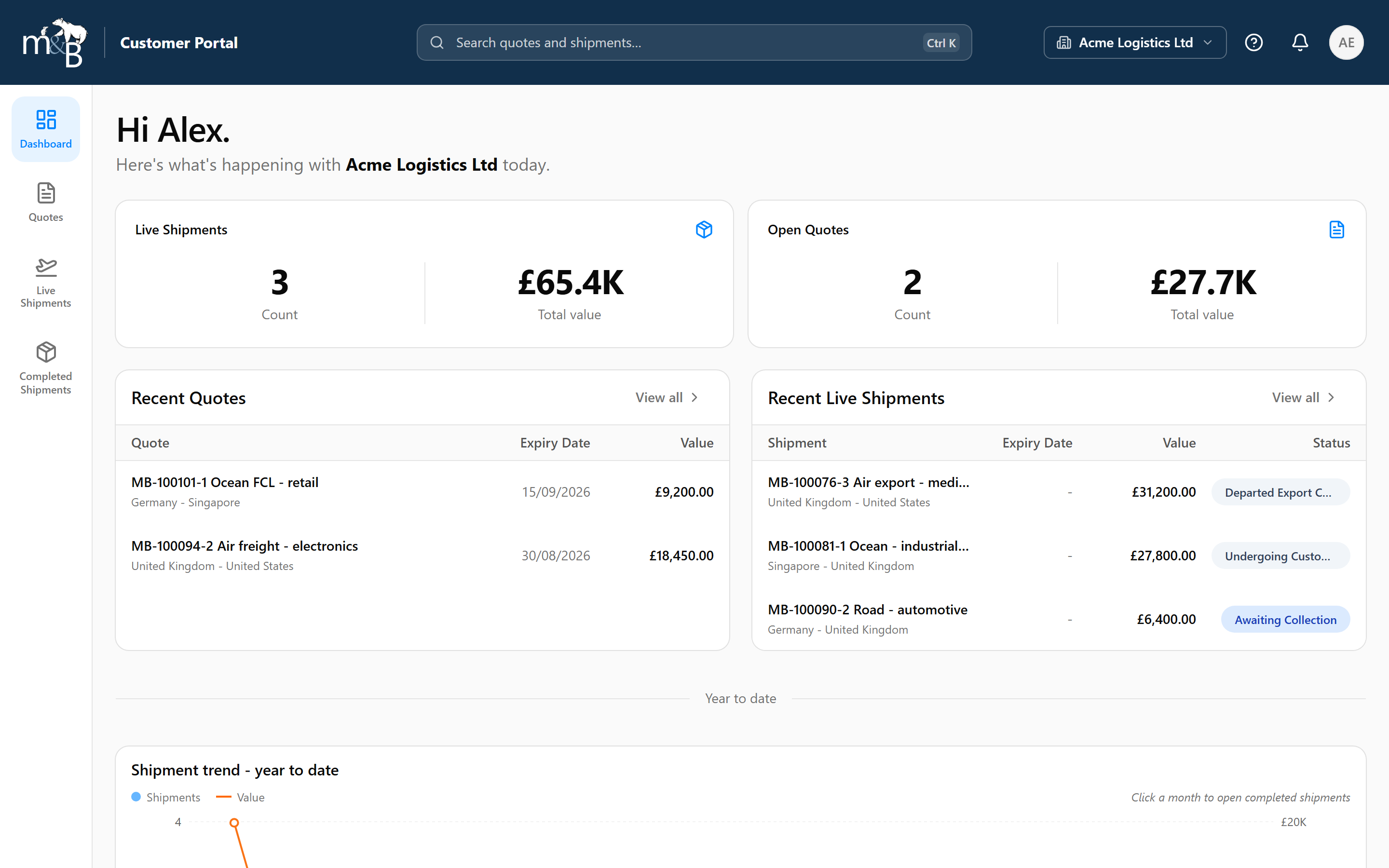
The Mouse & Bear Customer Portal is a private website where you can see everything happening with your freight in one place - without emailing or calling for an update.
It is kept up to date by the Mouse & Bear team, so what you see is the same information we are working from. When a shipment moves, the portal moves with it.
What you can do here
- Check your quotes. See every quote raised for your company, what it covers, what it is worth and when it expires - and download the quote document.
- Track live shipments. Follow a shipment from booking through to delivery, with dates, references and a progress timeline.
- Get your paperwork. Download the documents attached to a shipment, such as invoices and customs paperwork, whenever you need them.
- Look back at completed work. Search your delivered shipments for reporting, audits or reconciliation.
- Stay informed automatically. Get notified in the portal and by email when something changes, instead of chasing it.
- Export to a spreadsheet. Pull any filtered list into Excel for your own reporting.
- Manage your own login. Change your password, add a passkey and turn on two-factor authentication.
If you are the portal administrator for your company, you can also invite colleagues and control what they can see. That is covered in Managing your team's access.
Who can use it
Access to the portal is by invitation from Mouse & Bear or from your company's portal administrator. Everyone signs in with their own email address and their own password - logins are never shared.
There are two levels of access:
| Access level | What it means |
|---|---|
| User | Can see and use everything: dashboard, quotes, shipments, documents, notifications and their own account settings. |
| Administrator | Everything a User can do, plus inviting colleagues, changing their access level and removing access when someone leaves. |
Note
You only ever see data for the company account (or accounts) you have been linked to. Nobody outside your organisation can see your quotes, shipments or documents.
Where to start
- Get signed in. Follow Signing in for the first time to accept your invitation and create your password.
- Take the tour. Finding your way around explains the menus, the account switcher and where everything lives.
- Set up your alerts. Choosing what you're notified about takes two minutes and saves a lot of chasing.
How to use this help centre
Every guide is written as a walkthrough with screenshots. You can:
- Search with the search box at the top of the help centre, or press
Ctrl+Kanywhere in help. - Browse by section from the list on the left.
- Jump to a section of a long guide using the "On this page" list on the right.
Tip
Help is always one click away - the question mark icon in the top bar opens this help centre from anywhere in the portal, so you never have to lose your place to look something up.
The screenshots in these guides use example names and figures. Your portal shows your own information, and the exact columns, tabs and labels you see are set up to suit your account.
Still need a hand?
If a guide doesn't answer your question, the Mouse & Bear team is happy to help.