
Signing in for the first time
Accept your invitation, create a password, and sign in with a password, passkey or authenticator code.
Your portal account starts with an email invitation. This guide takes you from that email through to a working login, and covers what to do if you get stuck.
Accept your invitation
You will receive an email with the subject "You've been invited to the Mouse & Bear portal".
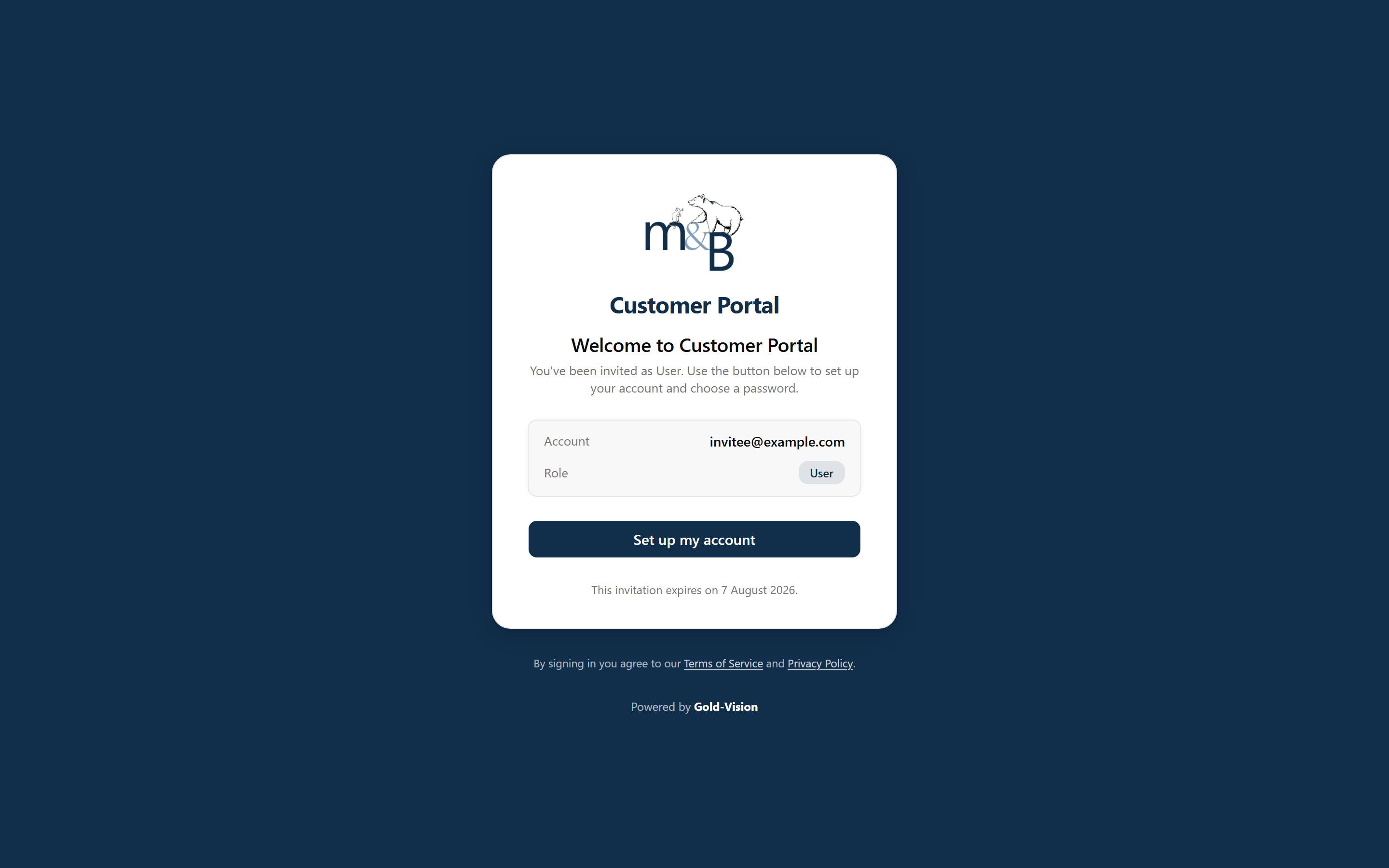
- Open the email and select Set up your account. If the button does not work, copy the long link at the bottom of the email and paste it into your browser's address bar.
- Check the details on the invitation page. It shows the email address the invitation was sent to and the access level you have been given.
- Select Set up my account.
Important
Invitations expire after 3 days. If yours has expired, ask your portal administrator or Mouse & Bear to send a new one - the old link cannot be revived.
If the invitation page shows an error
| Message | What it means | What to do |
|---|---|---|
| Invite unavailable | The link is incomplete or was not copied in full. | Copy the whole link from the email again, including everything after token=. |
| This invitation has already been used | The account has already been set up. | Go to the sign-in page and sign in, or use Forgot password? |
| This invitation has expired | More than 3 days have passed. | Ask for a new invitation. |
Create your password
Next you choose the password you will use to sign in.
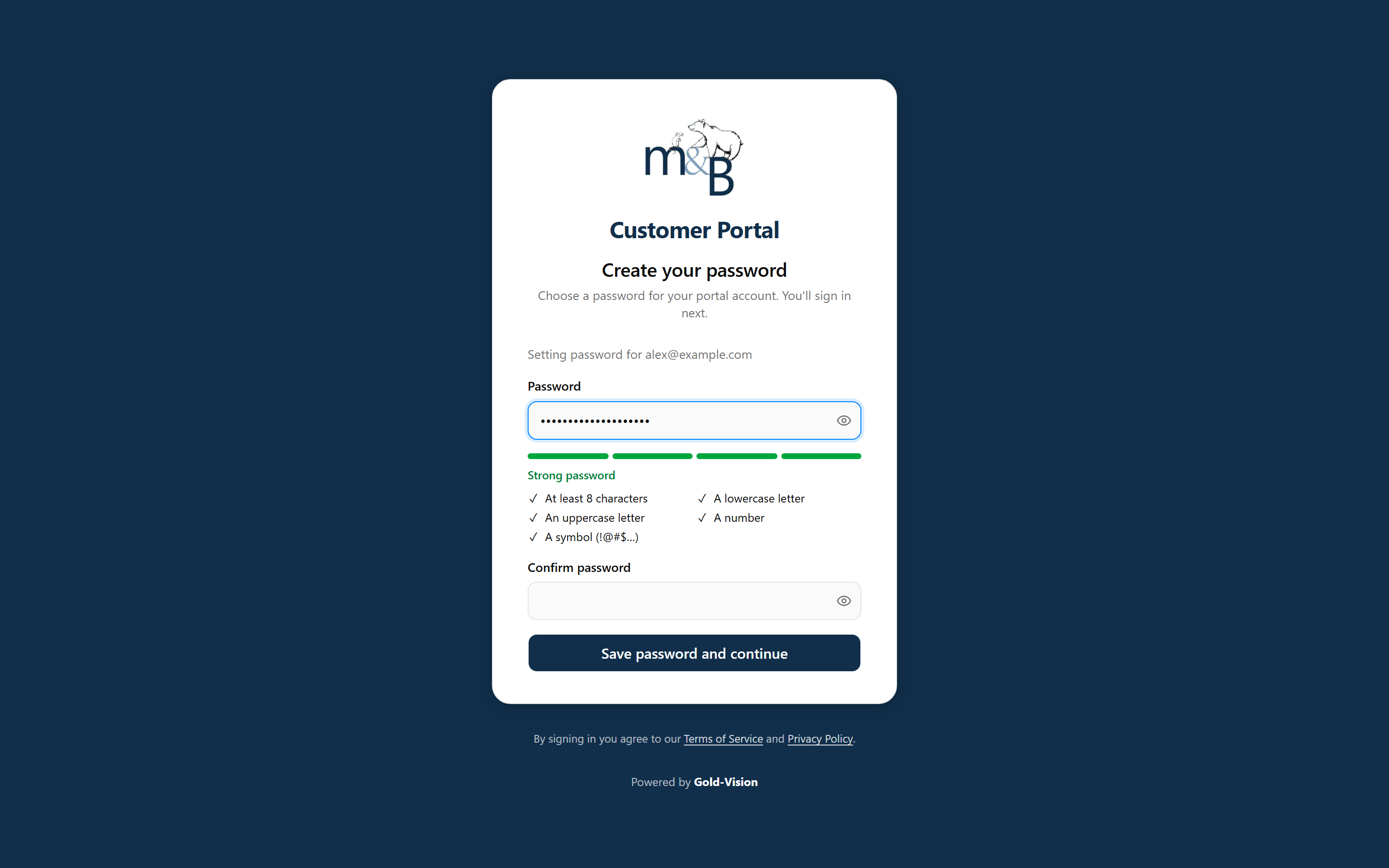
- Type a password in the Password field. A strength meter appears as you type and shows which requirements you have met.
- Repeat it in Confirm password. Use the eye icon to check what you have typed.
- Select Save password and continue.
A strong password is at least 12 characters and mixes upper case, lower case, numbers and symbols. A short phrase you will remember, with a couple of numbers and a symbol, works well.
Warning
The password setup link is single use and time limited. If you leave the page part way through and come back later, you may see Setup link expired - request a new link and start again.
Sign in
Go to your portal address and sign in.
- Enter your email address and select Continue.
- Enter your password and select Sign in.
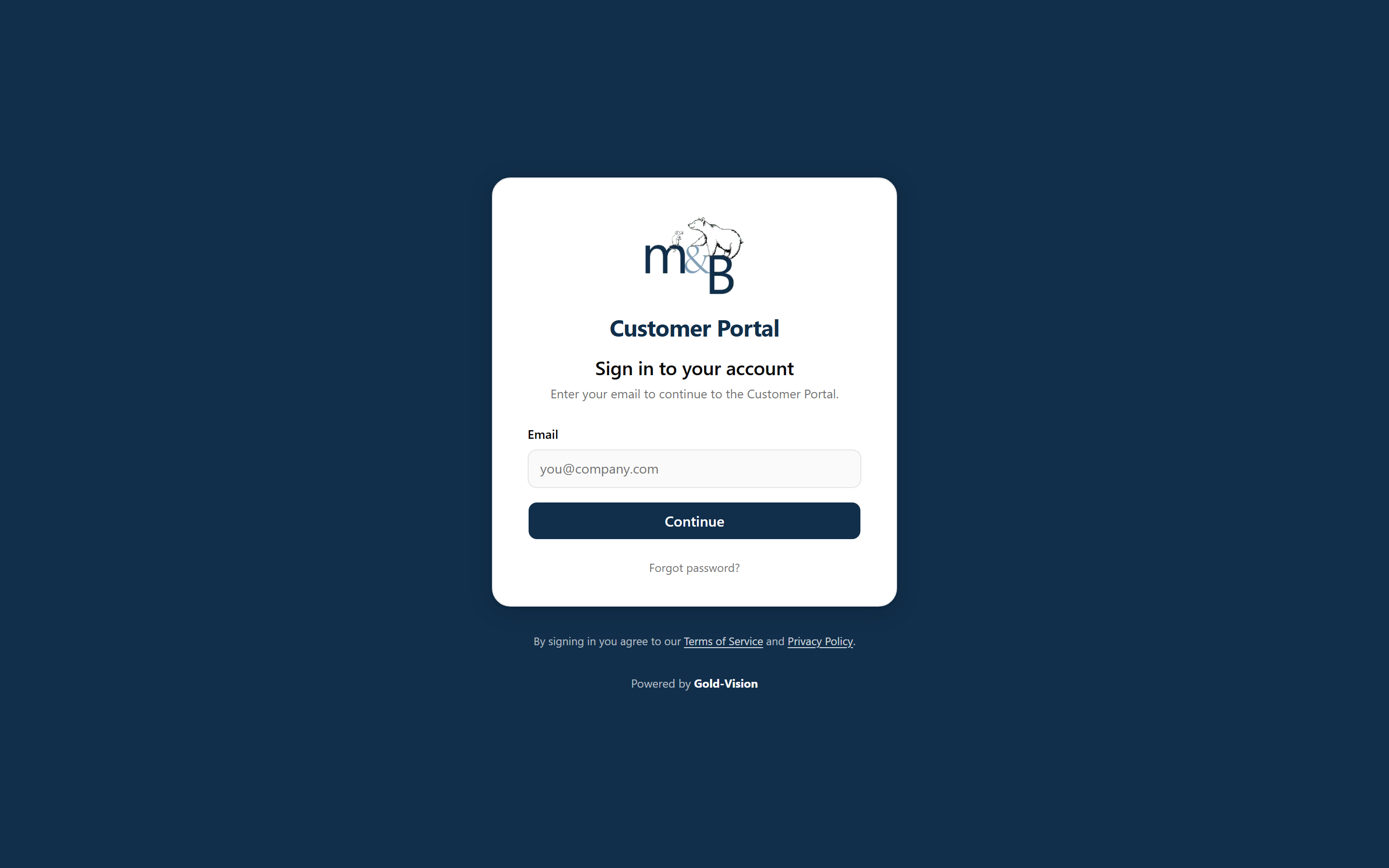
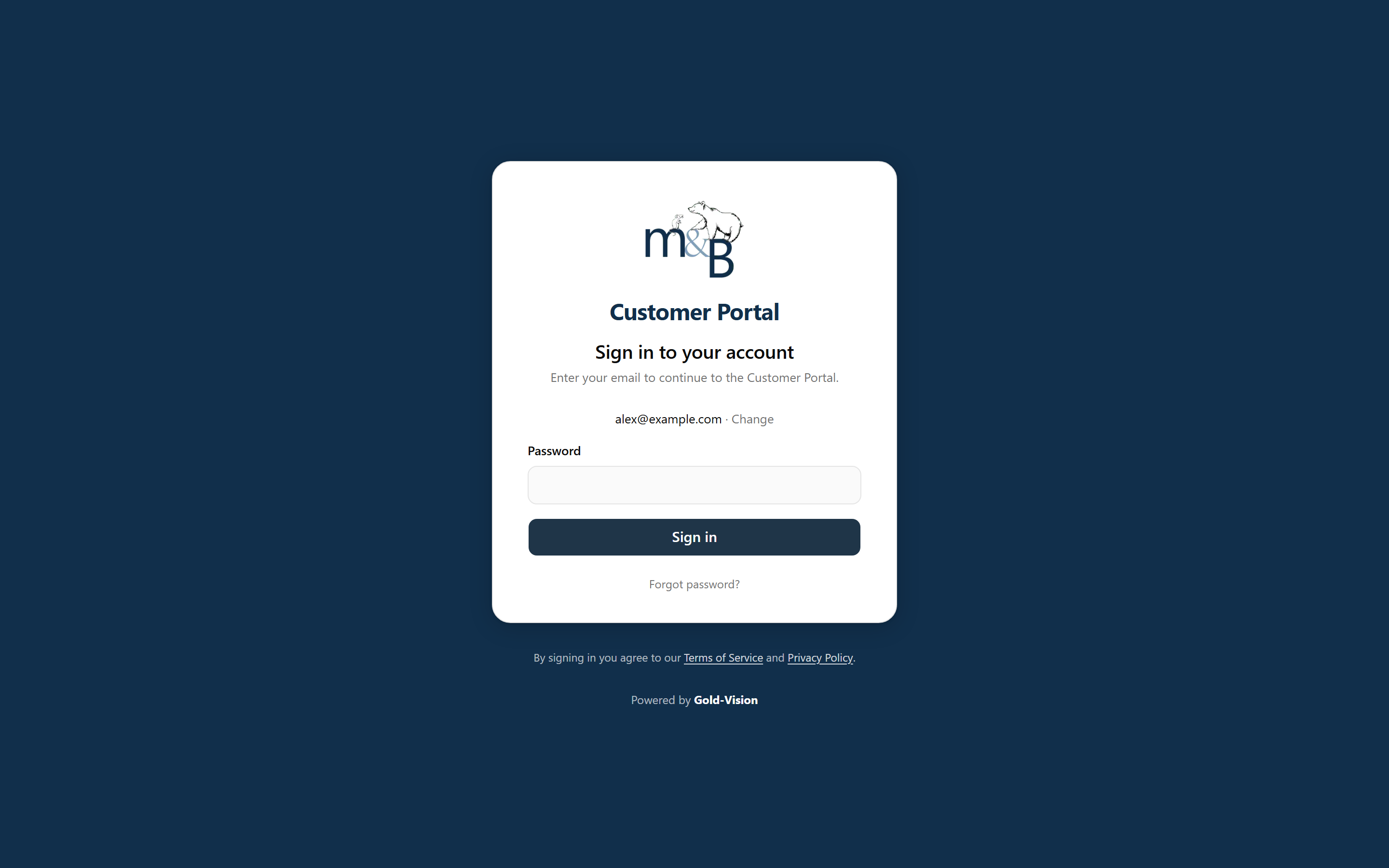
If you have registered a passkey, the portal offers you a choice of Sign in with passkey or Sign in with password after you enter your email. Select Change next to your email address if you need to sign in as someone else.
If you use two-factor authentication
If two-factor authentication is switched on for your account, there is one more step: enter the six-digit code from your authenticator app and select Sign in.
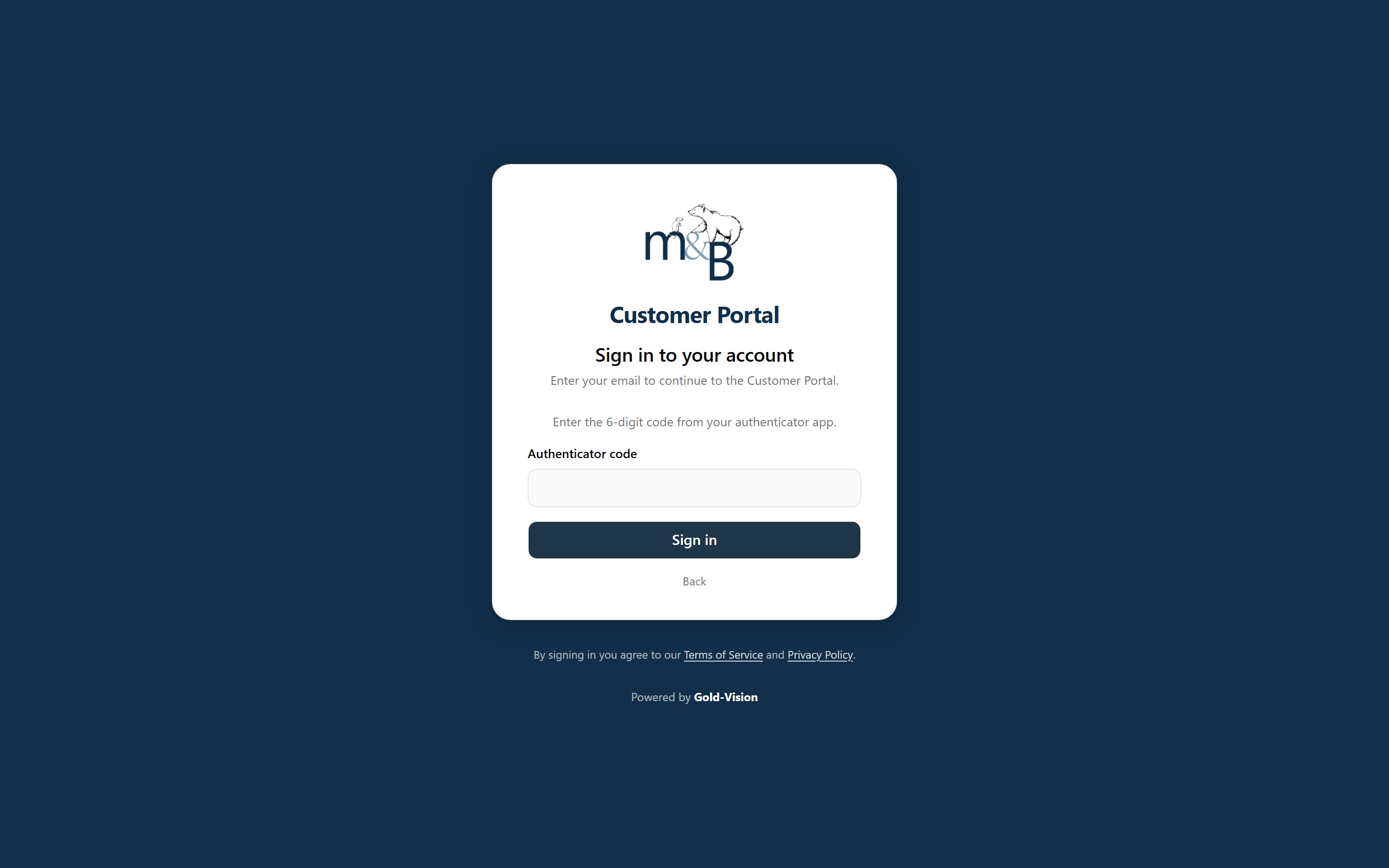
Codes change every 30 seconds. If a code is rejected, wait for the next one rather than retyping the same one, and check that the clock on your phone is set to update automatically.
Setting this up yourself is covered in Password, passkeys and two-factor authentication. You do that after your first successful sign-in, under Settings - Security - the invitation flow only asks you to create a password.
Forgotten password
- On the sign-in page, select Forgot password?
- Enter your email address and select Send reset link.
- Open the email and follow the link to choose a new password.
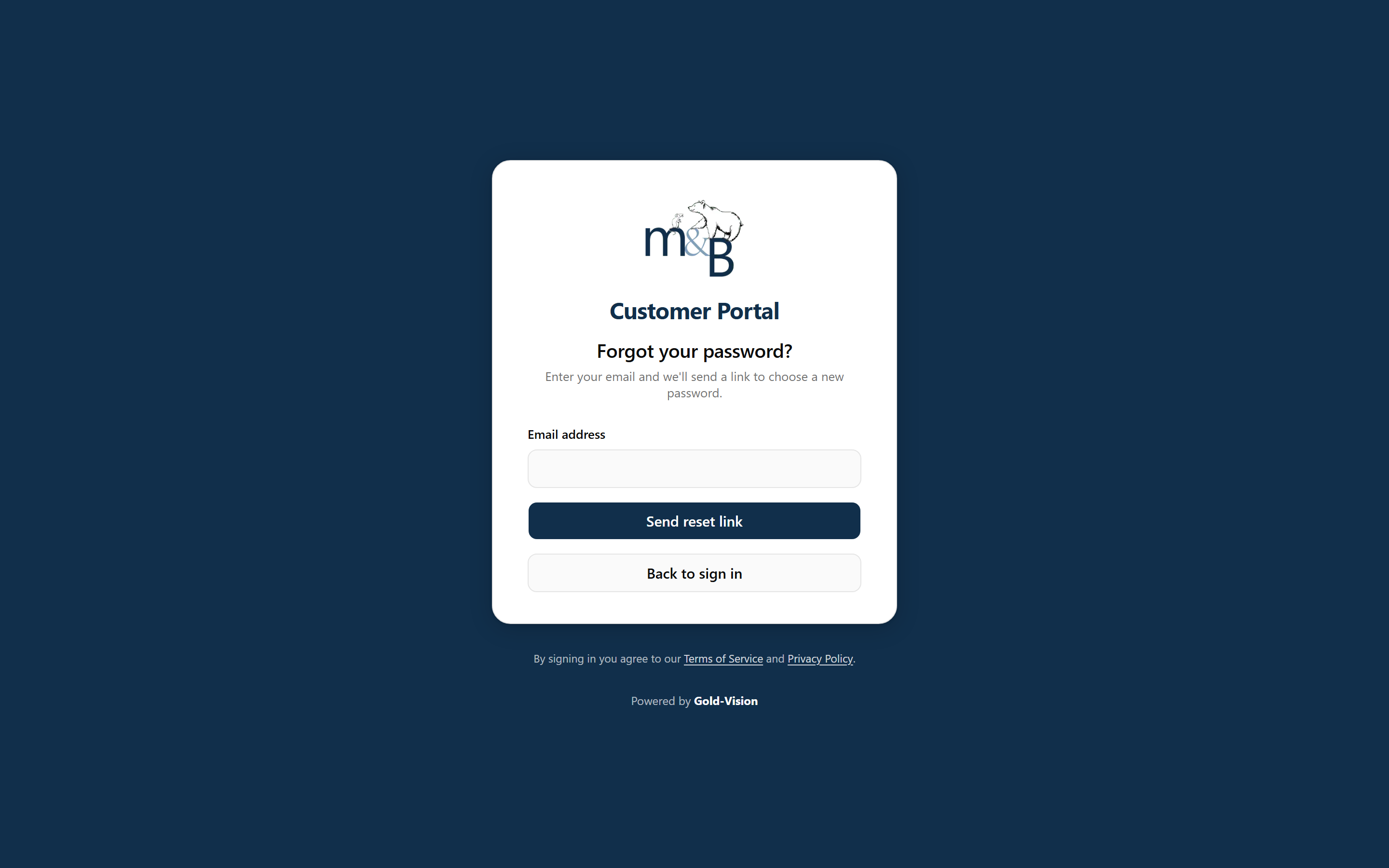
For security, the portal always shows the same confirmation message whether or not the address is registered. If nothing arrives within a few minutes, check your junk or spam folder, then confirm you used the same address your invitation was sent to.
Other messages you might see
- "You've been signed out" - your session ended, either because you signed out or because you were inactive for a long time. Sign in again on the same page.
- "Account Inactive" - your company's portal access has been suspended. Contact Mouse & Bear; this is not something a portal administrator can undo.
- "Portal access unavailable" - your password still works, but portal access is not enabled for any of your company accounts. Contact Mouse & Bear or your administrator; ticking a CRM flag alone does not grant access - an invitation (or re-enable) from the portal is required.
- "Sign-in problem" - something interrupted the sign-in. Select Sign in again. If it keeps happening, try a private browsing window to rule out a stale cookie.
- Too many attempts - sign-in is rate limited after repeated failures. Wait a few minutes and try again, or reset your password.
Tip
Bookmark the portal address itself rather than a page deep inside it. You will always be taken to your dashboard after signing in.
Still need a hand?
If a guide doesn't answer your question, the Mouse & Bear team is happy to help.